Improve collaboration in Google Docs, Sheets, and Slides with the activity board
What's New in G Suite May 2018. G Suite makes it easier for users to collaborate efficiently and effectively. An important part of collaboration is deciding how and when to follow up with others. To help inform these decisions, we're introducing the Activity Dashboard in Google Docs, Sheets, and Slides. It's a feature that lets users with editing access see who has viewed the file and when.

For example, a user can check if a coworker has already viewed a file and alert them that it has been updated. Or an account manager can determine the best way to follow up with a partner, depending on whether that partner has viewed the materials they previously sent.
Starting March 7, G Suite administrators have access to the new Admin Console settings to control the Activity dashboard for their domain or the organizational units (OUs) within it. On March 21, end users will begin seeing the Activity dashboard in Docs, Sheets, and Slides. See the “Delivery Calendar” section below for more information.
Understand when user display data will be visible
A file's Activity panel contains view data, which is information about who viewed the file and when. The view data shown in the dashboard depends on your organization's management console settings and the user's individual settings.
- As an administrator, you can determine whether user visibility data for your organization is displayed on the Activity dashboard. Specifically, you can choose to make user visibility data for your organization visible, invisible, or visible only within your organization. See the "Review and Change Your Company's Activity Dashboard Settings" section below for more information.
- If you make view data visible to your organization, your users can still choose to exclude their individual view data from appearing on the Activity dashboard through their personal privacy settings. If an administrator makes their organization's view data invisible, their end users will not be able to choose to share their view data. See the "End-User Controls for the Activity Dashboard" section below for more information.
Users with editing access to a file and who belong to the same domain as the file owner will be able to see the Activity panel for that file and any display information that is available in it.
Review and modify your organization's activity dashboard settings.
The administrator controls for the Activity dashboard are now available in the Administrator Console. There are three options:
- Activated: the Activity panels display all user views, unless individual users hide their information.
- Enabled: only within your domain: Your users' viewing information is only visible in the activity dashboards of files owned by users in your domain and other users within your domain, unless individual users hide their information. Your users' viewing data will not be visible in the activity dashboards of files owned by users in other domains.
- Disabled: User viewing data will not be displayed in the activity dashboard for any file. Your users may be able to see if external users have viewed their files, depending on those external users' activity dashboard settings.
Learn how to change your organization's settings in our Activity dashboard Help Center article for admins. Note : The Activity dashboard and its settings do not affect the data collected in your G Suite Drive audit log. End-user controls for the Activity dashboard: When the Activity dashboard is available to your users, they will see a notification in Google Docs, Sheets, and Slides explaining the feature and its control options. The Activity dashboard will only display a user's viewing data after they see this notification. It will not show any activity from before they saw it.

All users will have access to privacy settings that allow them to control whether their views are displayed on the activity board at any time. For more information and to change these settings, users can refer to the Activity Board Help Center article for users.
Publication schedule
The administrator console settings are now available. The activity dashboard will begin rolling out to users in two weeks.
- If your domain is on the Rapid Release path, the Activity dashboard will not be available to end users before March 21. Due to a phased rollout, all Rapid Release domains may not have access to the feature for up to two weeks after that date.
- If your domain is on the Scheduled Release track, the Activity dashboard will not be available to end users before April 9. Due to a phased rollout, it's possible that not all domains will have access to the feature for up to two weeks after that date.
Learn more about this feature in our Help Center article on how your users can use and control the activity board, as well as our Help Center article on the activity board for G Suite administrators.
Over time, we will add features to the Activity board to provide more information about the activity in the file and to make it easier to communicate with collaborators directly from the Activity board.
Stay safe with advanced anti-phishing and malware capabilities
We've recently introduced several features to G Suite to help keep your data secure. As described in our previous post, this includes advanced protections against phishing attempts and malware. Read on to learn more about these new settings and how they'll be deployed in your organization.
After this rollout, you'll see the new settings below in the Admin Console under Apps > G Suite > Gmail > Security . Each setting can be enabled, disabled, or customized.
In the “Attachments” section:
- Protect against encrypted attachments from untrusted senders
- Protect against scripted attachments from untrusted senders

In the “External Links and Images” section:
- Identify links behind shortened URLs
- Scan linked images
- Display a warning notice for any clicks on links to untrusted domains

In the section “Identity theft and authentication”:
- Protect against domain spoofing based on similar domain names
- Protect against employee impersonation
- Protect against incoming emails by spoofing your domain
- Protect against unauthenticated emails

At launch, most of these settings will be disabled for existing customers, as they may cause false positives depending on their domain configuration. To maximize security, the following settings will be automatically enabled for existing customers on April 4, 2018 :
- Identify links behind shortened URLs
- Scan linked images
If you do not want these settings to be automatically activated on April 4, you will need to deactivate or customize them before that date.
For more information about these new settings, visit the Help Center.
Note that G Suite Enterprise customers can view charts related to these settings in the G Suite Security Center, and the security page will warn them if these settings are not enabled.
Smarter file sharing with the updated Google Drive access checker
Google Drive makes it easy to share files through Gmail, Calendar, and other apps with a feature called "Access Checker." When you send an email, calendar invitation, or other communication that includes a Drive file, Access Checker automatically checks if the people you're sending the message to have permission to view the file. If they don't, Access Checker asks if you want to change the permissions before sharing the file.
We are updating the Access Checker to:
- It makes it easier to see who needs access. You will now see the names or email addresses that currently do not have access to the file in the access checker interface.
- It supports more file types in Drive. The access checker will now support files on a computer drive.
- Share directly with those who need access. The access checker will anticipate who needs to access a file and, intelligently, will by default share it only with those recipients.
The updated access verifier interface looks like this:

You can share with these smart default settings in just one click, or choose a different sharing option for the file. Previously, the default sharing option was "enable link sharing." We hope this change helps ensure that only the right people have permission to access your files.
Please note that all sharing settings configured for your domain (or OU) will remain the same. This release respects the settings you have already chosen for Sharing outside your domain, Access Verifier, and Link Sharing Defaults. If you have chosen to limit Access Verifier to Recipients only, link sharing will not be suggested.
These updates are based on your feedback, and we hope they will provide a sharing experience that is simple, secure, and anticipates the needs of our users.
Administrator controls for the access checker
As a G Suite administrator, you can control how the access checker works for your organization. Specifically, you can select the sharing options available to your users. You can choose whether your users see the option to:
- Share with recipients (default), share the link within your organization, share the link with anyone (no Google account required).
- Share with recipients (default), share the link within your organization.
- Share with recipients (default).

Call a US or Canadian phone number for free from Hangouts Meet
With easy-to-join video calls, Meet helps your team stay connected. Sometimes you might want to add participants to your meeting without sending them a link, such as when you want to connect people already dialed into a conference bridge, or if a team member is running late and still on their commute. That's why you can now call US or Canadian phone numbers directly from your meeting, for free.
With this release, G Suite users who are in the same domain as the event organizer and who access Meet through their web browser can add someone by phone by following the instructions in the Help Center.


For users to access this feature, G Suite administrators must first enable Google Voice in the Admin Console.
Please note that this feature is only supported in specific countries. See this Help Center article for a list of countries that are currently eligible to use this feature.
Join Hangouts Meet from six additional markets
In October 2017, we announced the rollout of international phone numbers for Hangouts Meet across G Suite Enterprise domains. This option helps your team stay connected, wherever they are. We've added this functionality to six more countries (with more to come!):
- Dominican Republic (DO)
- Estonia (EE)
- Greece (GR)
- Hungary (HU)
- Latvia (LV)
- Luxembourg (LU)
Group users into multiple directories in G Suite
The G Suite Directory provides profile information to users in your organization, allowing them to easily find and get to know each other while working in G Suite applications. For example, the autocomplete feature in Gmail makes it easy for users to find their colleagues' email addresses and quickly send them a message.
Previously, we allowed one directory per domain, which meant G Suite administrators could only enable or disable contact visibility for their entire domain and couldn't specify who saw what information. Now, we're enabling G Suite administrators to group users into separate directories with custom visibility rules for each organizational unit (OU). For example, a company might give full-time employees access to a global directory because they want them to be able to find other full-time and part-time employees. At the same time, they might not want part-time employees to find full-time employees, so they'd restrict them to a custom directory with applied restrictions.

Administrators can configure these visibility rules in the Admin Console under Apps > G Suite > Directory Settings.

Improved user management in the Administration Console
We're updating the interface you use when managing your organization's users in the Admin Console. These changes will make it easier to find and control user information and settings. For more information, see our Help Center topic on adding and managing users.
New Quick Actions Panel: Clicking on an individual user will display a user information panel, allowing you to quickly view and edit basic user information. Category cards provide more granular user management.

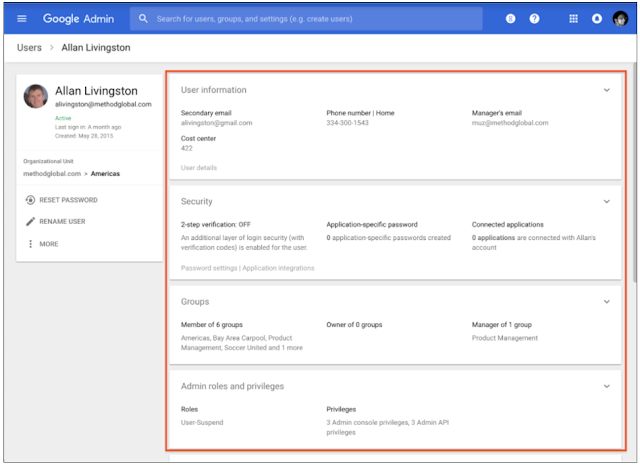
When you view an individual user, you'll also see cards with summary information that provide a quick overview of the most important information in various categories. Click on the cards to view the settings in detail or to quickly edit the information related to that user. Depending on the user's account and administrator privileges, you'll see some or all of these cards:
- User information. View and edit user contact information and view custom attributes.
- Security. Control user security settings, such as two-step verification and security keys.
- Groups. View the user's group memberships and roles, and manage their roles in those groups.
- Administrator roles and privileges. View and change the administrator controls granted to the user.
- Applications. View applications that the user has installed on a managed device.
- Managed devices. View and manage devices associated with the user.
- Licenses View the licenses granted to the user and control individual user licenses. See below.
- Equipment units. View user team unit memberships and manage team unit settings.

One of the new cards is a license card that will help improve visibility and license management within your organization. It features:
- Improved license statuses to provide a better understanding of a user's license allocation.
- Separate view modes and editing modes to aid in license management decision-making.
- Error handling and messaging were improved to help administrators.
Think macro: Log actions in Google Sheets to skip repetitive work
Since their debut nearly 40 years ago, spreadsheets have remained central to how businesses operate. From analyzing quarterly revenue to updating product inventory, spreadsheets are essential for helping businesses collect and share data to inform faster decisions, but what else can you do if they're in the cloud?
We've focused on improving Google Sheets for businesses for this reason, and we recently added new features to help teams analyze and visualize their data. Today, we're adding more updates to Sheets, including a way to record macros in the cloud to automate repetitive tasks, as well as more formatting options. Check it out.
Record macros in spreadsheets, skip mundane tasks
We want to help businesses automate work by approaching macros differently: first in the cloud. Starting today, you can record macros in Sheets. Let's say you need to format new data imports or create the same chart across multiple quarterly data sheets. Repeating the same steps manually can take hours, but the Sheets macro recorder lets you record those actions and replay them in command without writing any code.
Here's how it works: When you record a macro, Sheets automatically converts the macro actions into an Apps Script. If you want to update your macro, you can simply edit the script directly instead of having to re-record the macro from scratch. You can also write your own Apps Script functions and import them as new macros.
The best part about Sheets macros is that they're designed for use in cloud-based files, meaning teams can run macros while others work on the sheet without interrupting them. For example, a finance team having a budget meeting can run macros while reviewing the same spreadsheet. It also means that colleagues or clients won't be forced to download confidential files to use your macros. Because your Sheets files are in the cloud, you can maintain tighter control over who can view and re-share your data.
More updates in Spreadsheets
You may have noticed that in recent years we've worked hard to create spreadsheet features to help businesses view, analyze, and share their data more easily. This includes adding new chart types (waterfall and 3D), ways to insert charts and keep data up-to-date in Docs and Slides (even if you move files), more features (up to 400+ now), additional formatting, printing options, and more.
Today, we've added even routinely requested features, including the ability to add print page breaks, custom paper sizes, more options for grouping rows and columns, and a way to add checkboxes to cells. We've also made it possible to group your data by time frame (such as week, month, or year) when creating pivot tables.
Speaking of pivot tables, our engineering team has also been working hard to bring the power of Google AI to Sheets to help teams understand what their data knows. You may have noticed that we recently added smart pivot tables to Sheets to help you analyze and uncover new insights, no matter how skilled you are at data analysis.
Companies like Whirlpool Corporation and Sanmina are using Sheets for more collaborative data analysis. These latest additions are designed to make Sheets a go-to resource for businesses and will begin rolling out today. Learn more about Sheets in our Learning Center.
Add custom links to the navigation bar on new Google sites
The navigation bar is how users navigate a website and helps them quickly find important resources. New Google Sites automatically create an intuitive navigation bar that links to content within your site, but there may be times when you want to create your own links to other sites. That's why we're adding a new feature that lets you link to any URL from the navigation bar.
You can use this new custom link creator to add an item to the navigation bar that will:
- Your company's social media profile or homepage.
- Your company's HCM tool.
- Another Google site with different access permissions.
- Your team's project tracker
- Your computer's Drive folder.
- Any other website

Additional details about the new macro recorder and formatting options in Google Sheets
In our previous post, we provided an overview of some of the ways we're improving Google Sheets for businesses. This included several announcements of new features. This post will provide some more specific features and deployment information that may be helpful for G Suite admins.
Record macros in Sheets
To help your team save time on repetitive tasks, you can record macros in Sheets. When you record a macro, it's saved as an app script that you can run in the cloud whenever you need to perform the task. You can also edit the script to change it or import existing app scripts as new macros. See the previous post for more information or the Help Center for specific instructions.
Grouping rows and columns in a spreadsheet
There's a new option to group rows or columns in Sheets. This makes it easier to collapse or expand multiple rows and columns at once to customize your view. See the Help Center for more information on managing rows, columns, and cells.

Add checkboxes to a list in Sheets
You can convert a list of items into a checklist with the new checkbox feature. See the Help Center to learn how to add and use checkboxes.

Improved date-based pivot tables
We're making it easier to work with dates in pivot tables by adding an option to create groupings by date and time, including hour, day, month, quarter, year, and more. See the Help Center for information on adding and using pivot tables.

Better spreadsheet printing
We're adding new features to make printing spreadsheets easier. Specifically, you can specify custom paper sizes and set custom page breaks. This makes it easier to get the right content from a spreadsheet onto a printed page. See the Help Center for more information on printing from Google Sheets.

Allow users to install any application on their managed Android devices
Until now, G Suite users with company-owned Android devices and those with work profiles could only install mobile apps that their administrator had specifically whitelisted. In some organizations, however, such restrictions weren't critical, and whitelisting required unnecessary time and effort. That's why, going forward, we're giving administrators the option to allow their users to install any app from the managed Google Play store on company-owned Android devices or those with work profiles.
Administrators can select this option in the Administrator Console under Device Management > Application Management > Manage Applications for Android Devices.

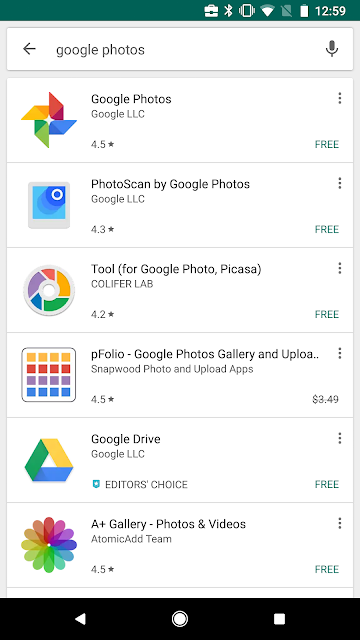
If an administrator selects "Allow all apps," they can still whitelist specific apps. These whitelisted apps will appear on the managed Google Play homepage, but users will be able to find any app using the search tool.
Receive notifications from Google on iOS devices through the Gmail app
In 2017, we made it possible for Google Suite users to enable two-step verification for the first time. At that time, we noted that users with iOS devices would need to install the Google app to use the feature. Today, we're also enabling iOS users to receive messages through their Gmail app. This should encourage more people to use Google's request, which is an easier and more secure way to authenticate an account.

Please note that if users have both Google and Gmail apps installed on their iOS device, they will see Gmail requests.
New in Google Slides: linking in Docs, guides and rules, and improved comments
Today we're introducing several features in Google Slides on the web that will make creating, collaborating on, and sharing presentations easier. Read on to learn more.
Insert slides from Google Slides into Google Docs
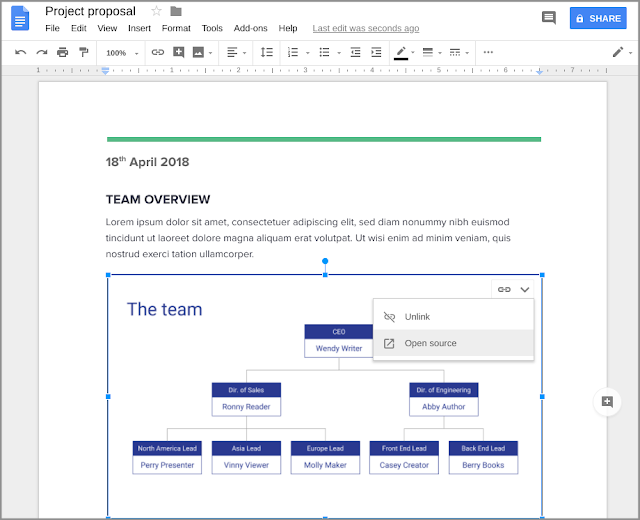
You can now insert a slide from a Google Slides presentation directly into Google Docs. If you wish, you can link that slide in Docs to its original presentation in Slides and sync any changes with a single click, similar to how you can insert and link charts from Google Sheets. This should save you from doing duplicate work and ensure that your document content is always up to date.
Use our Help Center to learn how to insert and link slides in Docs.
Design your slides with precision using new guides and rulers
You can now add guide lines for consistent placement and alignment throughout a presentation. These guides will appear on every slide in a presentation, and text and objects will snap to a guide to ensure they are aligned.
We've also created a new visual ruler, giving you granular control over the alignment of text, lists, objects, and guides. The indent markers on the ruler can help you control the alignment of text or bullet points within objects.
Use our Help Center to learn how to use guides and rulers in Slides.

Comments on the text within individual objects
You can now comment on specific text within an object, such as a text box, on a slide. Previously, you could only comment on the entire object or the entire slide. We hope this added control over what you're commenting on will make it easier for you to collaborate on presentations.
G Suite Enterprise for Education is now available

Since launching G Suite for Education, we’ve heard a common request from colleges, universities, and large school districts: the need for more advanced tools to meet their complex technology needs. In January, we announced G Suite Enterprise for Education, a new edition of G Suite for Education that offers additional enterprise-level capabilities designed for large institutions and tailored for education. Starting today, G Suite Enterprise for Education is generally available to educational institutions in the United States and will be coming to more countries soon.
In addition, new tools, such as data loss prevention (DLP), security key management and enforcement, and Gmail S/MIME, will begin rolling out to all G Suite for Education users in the coming months. G Suite for Education, a suite of tools used by 80 million teachers and students, has been and will continue to be free for schools, and we will continue to add new features to that edition at no additional cost.
New security features added to the free version of G Suite for Education
Administrators can expect greater security and controls with new tools that will be available in the coming months for the free version of G Suite for Education:
- Gmail and Drive Data Loss Prevention (DLP) They allow administrators to prohibit users from sharing confidential content with people outside their institutions. They check for confidential content, such as student personal information or predefined keywords, and alert administrators so they can intervene.
- Hosted Gmail S/MIME It offers schools an additional line of defense to protect confidential emails. With this tool, institutions have the option to digitally sign and encrypt emails. Furthermore, it also adds verifiable signature authentication at the account level to better protect against email spoofing. It is easy for administrators to manage and seamless for users.
- The administration and application of security keys It offers an additional layer of security for user accounts by requiring a physical key. Now, administrators can require teachers, staff, and students to use physical keys that employ cryptography as part of two-step verification when logging into G Suite.
- Administrators can control the session duration For users accessing Google services, such as Gmail and Drive, this means users will be automatically logged out after a specific period of time. If specific user groups require certain session durations, administrators can apply different web session duration settings to different groups.
Enterprise-level tools for educational institutions
For educational institutions with administrative needs similar to those of businesses, G Suite Enterprise for Education offers robust tools tailored for education. Here's what users can expect:
Advance your institution with advanced controls
The Security Center in G Suite Enterprise for Education gives organizations greater visibility and control over their security. To help prevent institutions from facing potential threats, we're equipping IT administrators with actionable insights to protect sensitive data from attacks. With the tools in the Security Center, IT departments gain insights into how data can be exposed through external file sharing, view phishing messages targeting users within their organization, and access metrics to demonstrate the effectiveness of their security efforts.
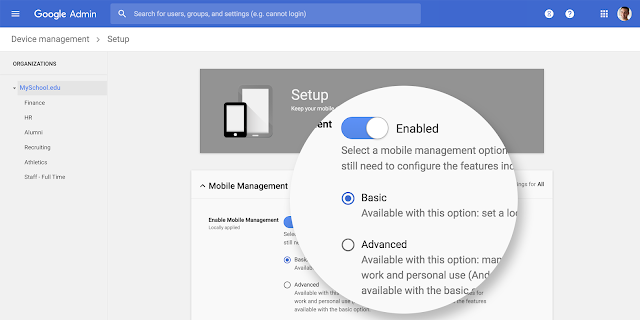
With Advanced Mobile Device Management (MDM), universities and institutions have scaled their control over devices within their domain. Using customizable MDM rules, administrators can automate mobile device management tasks, such as approving all Android devices that enroll for management at the start of a new academic year. Once the rules are in place, predefined events trigger actions such as sending notification emails to administrators, blocking or approving a device, or even wiping device account data if a student loses it. And with Mobile Audit, administrators can view a report of device activity, including device policy compliance.
Enhanced search and analysis capabilities
Cloud search is coming soon to G Suite Enterprise for Education, bringing institutions a unified, AI-powered search experience across G Suite. This tool helps educators and students stay on top of schedules, documents, and emails, and can even suggest files that need attention. By searching everything from conference presentations to the school's corporate directory, users can spend less time searching for information and more time focusing on teaching and learning.
Gmail logs into BigQuery. Enabling organizations to run sophisticated custom queries, perform in-depth analysis, and create custom dashboards. Gmail logs contain valuable information that can help administrators diagnose problems. Integration with BigQuery makes it easy for administrators to analyze logs and unlock insights to help them run their organizations.
Collaborate. Coordinate. Communicate.
Hangouts Meet's advanced capabilities enhance internal and external collaboration, enabling meetings with up to 50 participants and recordings saved to Google Drive. With these communication tools, instructors can save lectures and lesson recordings directly to Drive and collaborate from anywhere.
Since announcing G Suite Enterprise for Education in January, we've been making the US dial-in feature for Meet available to all business and education customers, and we'll be rolling it out over the coming months. This allows users to join meetings by phone from anywhere, without worrying about poor Wi-Fi connections. With G Suite Enterprise for Education, Meet dial-in is available in dozens of countries, making it easy for educators to connect if their institution has a global presence.
Get G Suite Enterprise for Education for your institution
If you're interested in purchasing individual licenses, G Suite Enterprise for Education costs $4/user/month for faculty and staff, and $4/user/month for students. If you're purchasing licenses for all faculty and staff in 2018, we're offering a special introductory price of $2/user/month for faculty and staff, and free for eligible students. Renewals at the introductory price will be honored for three years. Learn more about pricing, renewals, and features for this edition in our Help Center.
Session length controls for domains using SAML
In March, we introduced a setting that allows G Suite Business, Enterprise, and Education administrators to specify the duration of web sessions for Google services (for example, four hours, seven days, or indefinitely). At that time, this setting only applied to domains where Google was responsible for sign-in (that is, where Google was the identity provider). We are now expanding the scope of this setting and making it applicable to domains that federate with another identity provider (IdP) that uses SAML.

Note that these settings apply to all desktop web sessions, as well as some mobile browser sessions. Native mobile apps, such as Gmail for Android and iOS, are not affected by these settings.
Deletion of session-based cookies on May 7, 2018
In the past, to give a G Suite customer's preferred IdP more control over session duration, we configured cookies created through federation with another IdP via SAML as transient or session-based. These cookies were supposed to expire each time the browser was closed, meaning the user would be redirected to their primary IdP every time they reopened their browser and visited a Google site.
Over time, however, this behavior has become increasingly inconsistent across browsers. We believe G Suite administrators have better explicit session length controls, such as the ones we just released. Unlike session cookies, these controls are respected regardless of the user's browser.
With this in mind, we will be removing session-based cookies for G Suite customers federated to another IdP via SAML on May 7, 2018. Consider setting a custom session duration for your organization if your workflows rely on it.
Replicating the previous behavior
If it's essential to replicate the previous behavior, where all sessions expired when a browser was closed, you can change the browser settings on the affected machines to delete all local data when the browser is closed. Instructions for configuring this in Chrome can be found here. To implement this policy across multiple machines, use Chrome's policies to configure ephemeral mode.
All G Suite customers can now create Hangouts Meet meetings using dial-in phone numbers.
Hangouts Meet makes it easy to connect with your team from anywhere with easy-to-join video calls. This includes when you're away from your computer, such as when you're traveling or don't have a data connection, and you need to call in to your meetings while on the go.

Now, all meetings created in Google Calendar by G Suite users will have a US dial-in phone number that anyone can use to join the meeting, including non-G Suite users.
Meetings created by G Suite Enterprise users will now also have international phone numbers available. Dial-up phone number access was previously only available for meetings set up by G Suite Enterprise users. Note that administrators can disable the dial-up feature in the Admin Console.
For more information on how to connect to Hangouts Meet, see the Help Center.
Gain more control over chart data labels in Google Sheets
We're adding new features to help the charts you create in Google Sheets better represent the data they contain. These features include showing total data labels for stacked charts and controlling where data labels are placed.
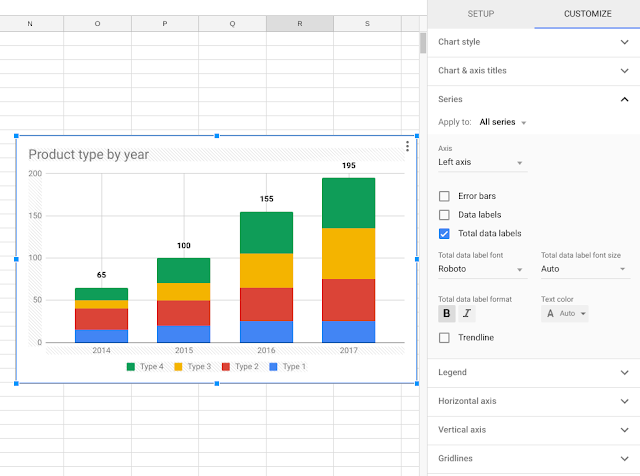
Display totals in stacked charts
You can now add total data labels to stacked charts, which show the sum of all the content in a dataset.
Choose the alignment of your data labels
You can also choose where the data labels will appear in the charts. The options available vary depending on the type of chart you are using.
For column and bar charts, the data label placement options are:
- Cars – Sheets will try to choose the best location
- Centro – In the middle of the column
- Inner end : at the end of the column
- Inner base : at the base of the column
- Outermost – Past the end of the column

For line, point, and area charts, the placement options are:
- Cars – Sheets will try to choose the best location
- Centro : in the middle of the plot point
- Left – to the left of the plot point
- Right – to the right of the plot point
- Above , above the plot point
- Down – below the plot point

View people's profile information on new cards in G Suite apps
If your users are scheduling a meeting or catching up on Google+ posts, it's important that they can easily see who they're interacting with. That's why we've added new personal information cards that appear within G Suite apps on the web, such as Google+ and Calendar, where appropriate.
These cards display profile information when a user hovers their cursor over another user's name or profile picture. The information may include data points such as:
- Job title
- Desktop location
- Department
- Contact information (email address, phone number, etc.)
- Call-to-action links to internal directories, social media profiles, and more

To obtain the total value of these cards, you, as a G Suite administrator, can complete this data for users in your organization in certain locations:
- “Users” section of the Administration Console
- Google Cloud Directory Sync, or
- Administrator SDK
You can also delegate editing rights for some profile fields to end users in the Admin console under Apps > G Suite > Directory. Users can edit their profile at aboutme.google.com. In the future, we will also provide support for delegating editing of other fields, such as Administrator and Job Title.
Other benefits of filling out profile details
We recommend completing user profiles to unlock additional benefits for your users. For example, in the near future, Calendar will begin using work location to intelligently suggest meeting rooms for guests.

You can see these cards now in Google Calendar and Google+ on the web. They will begin appearing in other G Suite products over the next few months.
Additional details about Gmail's new early adoption program
We recently announced an Early Adopter Program (EAP) for the new Gmail. Below you'll find additional details about the EAP, including how to enroll, setting up the related admin console, and the implications of certain features. If you haven't already checked out our G Suite blog post, we recommend doing so before reading the information below.
You don't need to subscribe to the new Gmail EAP; you can simply activate it in the Admin Console. You can enable the new EAP for your entire domain or only for specific organizational units (OUs). Note that the setting may take up to a day to appear in the Admin Console.


If they prefer, their users can continue using the classic version of Gmail instead of the new user interface. When we release the new Gmail to the general public, you'll have the option to force users to switch to the new UI. Please note that if a user tries the new Gmail and wants to revert to the classic version, they can do so from the Gmail settings menu.

Native offline support will only be available for domains and users who have enabled the new Gmail. At launch, it will be disabled by default for those domains, and administrators will need to enable it before it becomes available to their users. For more information, keep an eye on the G Suite Updates blog.


Coming soon, May 7, 2018: A more secure login flow in Chrome
If your organization uses SAML to sign users into G Suite services*, those users will soon see an additional step in the process when using Chrome as their web browser. Starting May 7, 2018, after signing in to a SAML provider's website, they will be taken to a new screen at accounts.google.com to confirm their identity. This screen will provide an extra layer of security and help prevent users from unknowingly signing in to an account created and controlled by an attacker.

To minimize user disruption, this feature will only appear once per account per device . We're working on ways to make the feature even more context-aware in the future, meaning your users should see the screen less and less over time.
Protection against phishing attacks
This new screen is designed to prevent potential attackers from tricking a user (for example, through a phishing campaign) into clicking a link that will instantly and silently sign them into a Google account controlled by the attacker. Currently, this can be done using SAML single sign-on (SSO), as it doesn't require user interaction to complete a login. To protect Chrome users, we've added this extra layer of security.
Creating a consistent identity
This new security feature is part of a larger project to create a consistent identity across Google web services (like Gmail) and native Chrome browser services (like Chrome Sync). This consistency will make it easier for users accessing G Suite to take advantage of native Chrome browser features, but it requires additional protection during authentication. This new screen adds that protection and reduces the likelihood of attackers abusing SAML SSO to sign users into malicious accounts.
Disable the new screen
If you want to disable the new screen for your organization, you can use the X-GoogApps-AllowedDomains HTTP header to identify specific domains whose users can access Google services. Users on those domains They won't.because we assume that your users trust those accounts. This header can be configured in Chrome via the AllowedDomainsForApps group policy.
This will not affect people who sign in to G Suite services directly or who use G Suite or Cloud Identity as their identity provider. The screen is also not displayed on Chrome OS devices.
With new security and smart features, the new Gmail means business
From the beginning, our goal with G Suite has been to help businesses transform the way they work with our suite of cloud-based collaboration and productivity applications.
Today we're announcing significant updates to help the more than 4 million paying businesses that use G Suite work more securely, smarter, and more efficiently. This includes a completely redesigned Gmail, with a fresh look on the web, advanced security features, new AI-powered Google apps, and even more integrations with other G Suite apps. We're also introducing a new way to manage work on the go with Tasks.
Keep your sensitive data safe with Gmail's new security features
Keeping our data safe is our top priority, which is why last month we introduced new phishing protections to help address Business Email Transaction (BEC) threats, or when someone impersonates an executive to obtain sensitive information. With these new protections, Gmail has helped block 99.9 percent of BEC attempts by warning users or automatically forwarding messages to them.
Today we're introducing a new approach to information protection: Gmail's Confidential Mode. With Confidential Mode, you can protect sensitive content in your emails by setting expiration dates or revoking previously sent messages. Because it can require additional authentication via text message to view an email, it's also possible to protect data even if a recipient's email account has been compromised while the message is active.
Built-in Information Rights Management (IRM) controls also allow you to disable forwarding, copying, downloading, or printing of messages. This helps reduce the risk of sensitive information being accidentally shared with the wrong people. Confidential Mode will begin rolling out to Gmail users and a limited number of G Suite customers in the coming weeks (more details to follow).
We've also redesigned our security warnings within Gmail to make them easier to understand and provide a clearer call to action for employees. These larger, bolder warnings will help you stay even more informed when it comes to potentially dangerous emails.

And it's always worth remembering: we don't scan Gmail for the purpose of targeting ads, and ads are not shown in Gmail to G Suite customers.
Stay on top of your email effortlessly using artificial intelligence in Gmail.
New AI features in Gmail, such as Nudging, Smart Reply, and high-priority notifications, can now help you spend more time on the work that matters.
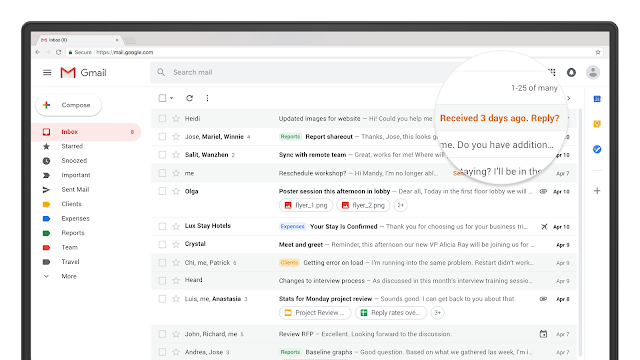
Most of us receive more emails than we can handle at once, and sometimes things just get out of hand. With Nudging, Gmail will proactively remind you to follow up on or reply to messages, ensuring you don't drop the ball.
Last year, we introduced Smart Reply to our Gmail mobile apps. Smart Reply processes hundreds of millions of messages a day and already handles more than 10 percent of email replies on mobile. Today, we're bringing Smart Reply to Gmail on the web to help you respond to messages faster.
We're also introducing new features on mobile to help minimize interruptions and clutter. High-priority notifications is a new setting that only alerts you to important messages, keeping interruptions to a minimum. Gmail can also recommend when to unsubscribe from mailing lists. Using intelligence, unsubscribe suggestions appear based on indicators such as how many emails you receive from a sender and how many of them you actually read. You'll start seeing these notifications appear in your inbox in the coming weeks.

In recent months, Salesforce has been testing the new Gmail for collaboration on global projects. “As a global leader in CRM, the ability to communicate quickly and securely with our stakeholders around the world is critical,” says Jo-ann Olsovsky, executive vice president and chief information officer at Salesforce. “Gmail’s new, user-friendly interface and built-in intelligence allow our employees to collaborate faster and smarter, spend less time managing their inboxes, and more time driving our customers’ success.”
Get more out of your inbox with easy-to-use tools
We redesigned the Gmail web app to help you take action even faster. Now you can see and click on attachments in your inbox before opening a thread. You can also hover over messages (no need to click) to do things like RSVP to a meeting invitation, archive an email thread, or snooze an email until the right time.
As part of the redesign, we're also tightly integrating Gmail with other G Suite apps you use every day. Now you can quickly reference, create, or edit calendar invitations, capture ideas in Keep, or manage to-dos in Tasks—all from a side panel in your inbox.
The sidebar also makes it easy to access Gmail add-ons, such as third-party business applications you might use. This way, you don't have to switch between tabs or apps to get your work done. You'll start seeing the new sidebar integration in other G Suite apps in the coming months, including within Calendar, Docs, Sheets, and Slides.
New native offline capabilities in Gmail on the web can help you work seamlessly when you can't find Wi-Fi. Search, compose, reply, delete, or archive up to 90 days of messages, just like you would online, but offline. Teams can start using offline capabilities in the coming weeks.
As we mentioned, we're introducing new Tasks on the web, as well as new mobile apps to help you manage work on the go. You can use Tasks to create tasks and subtasks, and even add due dates with notifications to help you stay on track.

And because Tasks integrates tightly with G Suite, you can simply drag and drop a Gmail email into Tasks to create a to-do item. Tasks with due dates can also appear in your Calendar. You can download the new Tasks mobile apps today from the Google Play Store or iOS App Store.
The new Gmail experience is available for businesses to start using today in the G Suite Early Access Program (EAP) and can be activated in the Admin console. Read more details about how to activate the experience in this post. Note: You'll start seeing offline support, confidential mode (limited release), nudging, high-priority notifications, and unsubscribe suggestions appear in the coming weeks. Stay up to date with the latest news about these features on the G Suite Updates blog.
Personal Gmail users can also opt in to the new experience (go to Settings in the top right and select “Try the new Gmail”).
More improvements to user management in the Administrator Console
We're updating the user list interface in the Admin Console to make it easier to view, find, and manage users. These improvements to the user list build upon the user details experience enhancements we recently announced.
Search for users with improved search and new filters
The new user list view lets you see users across all or some organizational units (OUs), search and filter users, and take actions on specific users. You can:
- Search for users using filters: You can now filter by administrator role, job title, department, user status, and more.
- Download or export filtered lists: a Once you filter, you can download a list of users with the filters applied.
- Improved search: Find users quickly using powerful new search features, including the ability to search within specific organizational units and by user attributes.
- Personalize your view: Customize the columns displayed in the table to see all the information you need in a single view.

Take quick action with users directly from the list.
- Change individual user information: Hover your mouse over a user to perform quick actions, such as resetting the password, changing the user name, suspending, deleting or restoring the user account, changing the organizational unit, and much more.
- Update multiple users with bulk actions: Quickly edit information for multiple users with bulk actions such as adding to group, email users, deleting accounts, and more.

Easily manage the organization's units
There's a new section dedicated to simpler management of organizational units. Here, you can easily create, move, and manage organizational units.

Event details are now supported by Calendar Interop
Last summer, we announced improvements to Google Calendar Interop for Microsoft Exchange. We simplified the setup process, introduced detailed logs in the Admin Console, and made availability searches available on both mobile devices and the web.
To further improve the coexistence of these two systems, we're expanding support for event details in availability searches. Now, G Suite administrators can choose to share event details when users use the Find a Time tool in Calendar or the Outlook Scheduling Assistant. Event details include:
- Event title
- Place of the event
- Guest response status

Display your organization's brand in the Google toolbar
We're updating the Google toolbar to showcase your brand. Along with some minor changes to the toolbar's appearance, we'll soon be displaying your domain logo next to your user picture (or initials or avatar) at the top of many G Suite services, such as Calendar and Drive.

You can add an image for your organization in the Admin Console under Company Profile > Personalization ; until you do this, we'll show you the G Suite logo.
Please note that this will be rolled out to G Suite services gradually, so you may not see it in all your apps for a while.
We listen to you
Those who have trusted us